
Learn a little before you open the app.
LockToLearn locks the apps you pick. Review a few flashcards and they open. The moment you reach for your phone becomes study time.


Inside the app
Home, building a vocab deck, bringing your own cards, the review, and after the review.
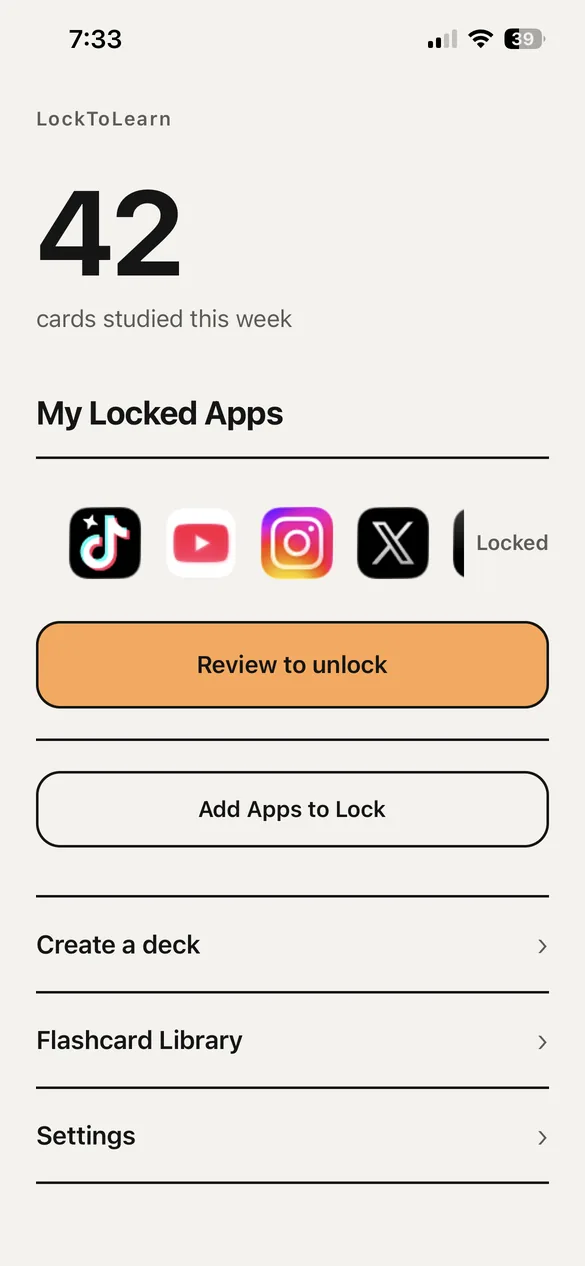
Home
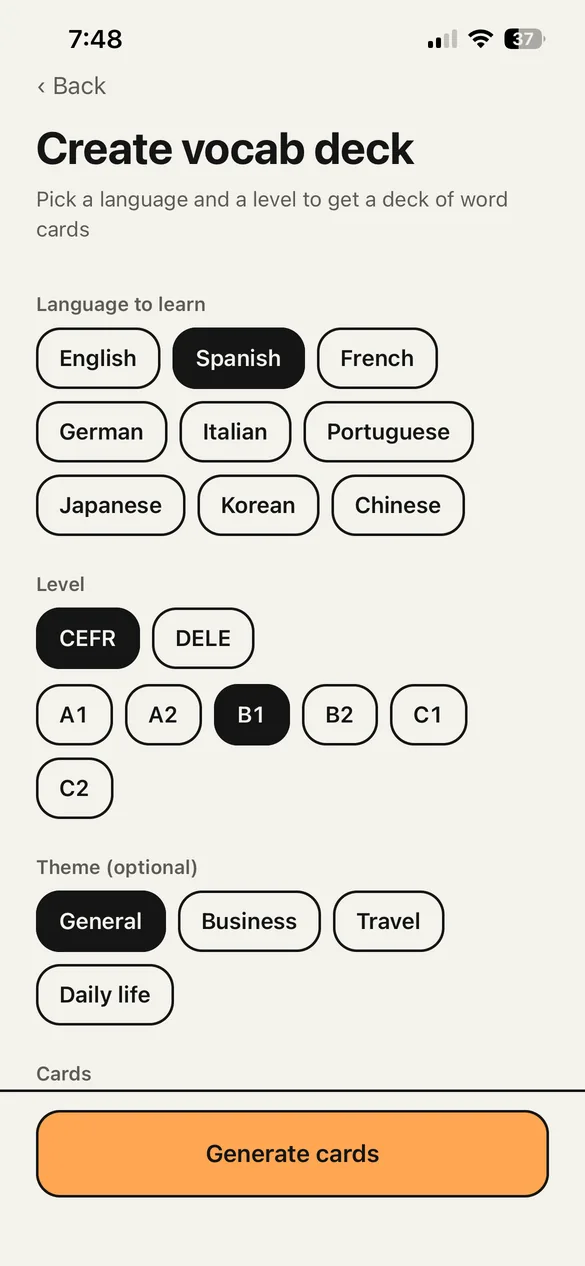
Pick a language and a level for a vocab deck
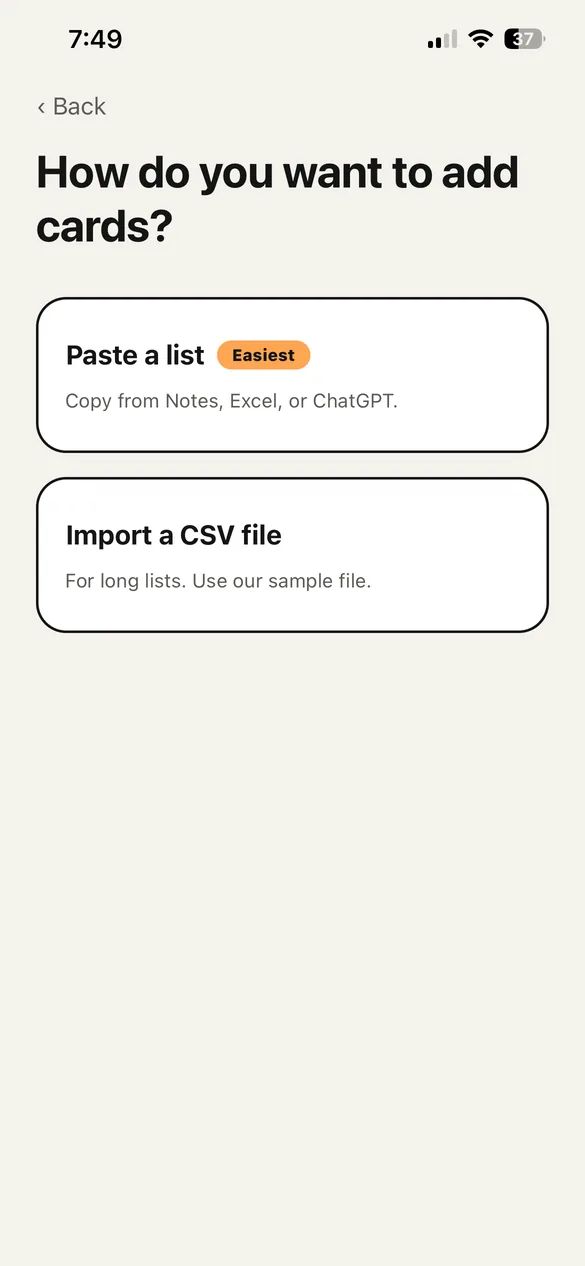
Paste a list or import a CSV file
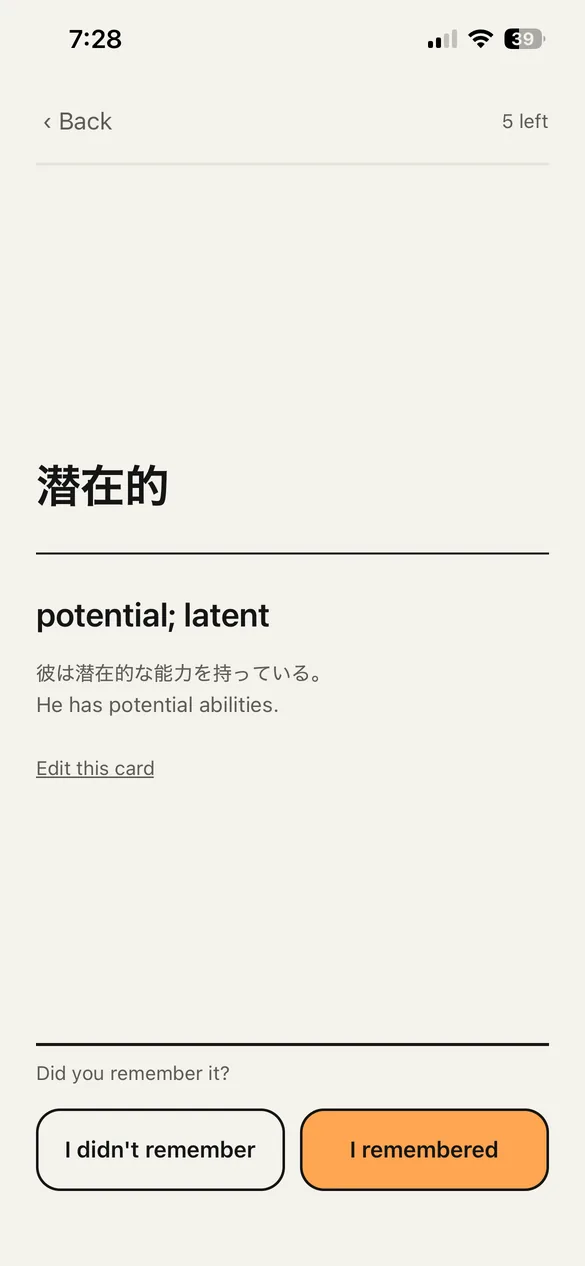
Recall, flip, and grade yourself
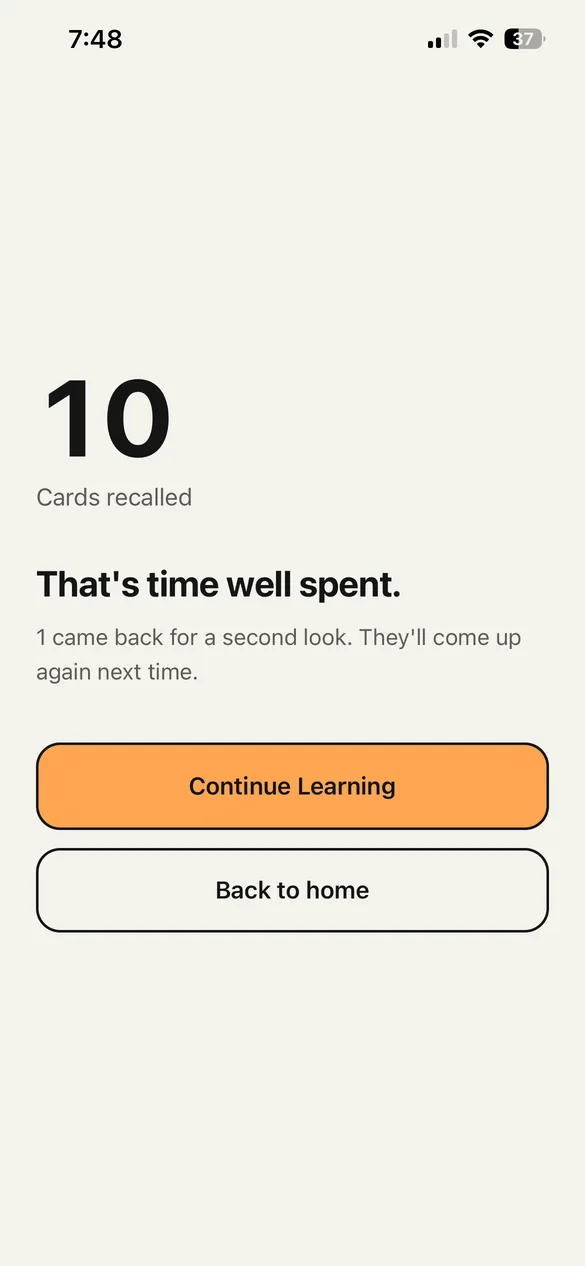
Finish, and the app opens
How it works
Three steps between reaching for your phone and learning something.
Pick the apps to lock
Choose the apps you open without thinking. The lock runs on iOS Screen Time.
Open one, and flashcards appear
Look at the front, recall the answer, flip to check, and say whether you remembered it.
Finish the review, and it opens
Once you finish that round of cards, the app opens for the time you set. Then it locks again.
What you can learn
For languages, AI builds the vocab deck. For everything else, bring your own cards.
Learn a language
AIPick a language and a level, and AI builds the vocab deck. Each card has the word, its meaning, and an example sentence with a translation.
Levels you can pick
- TOEIC
- Eiken (Japan)
- TOEFL
- IELTS
- JLPT
- DELE
- CEFR
Nine languages: English, Spanish, French, German, Italian, Portuguese, Japanese, Korean and Chinese.
Learn anything
Your own cardsExam prep, work terms, anything. Bring the cards you already have.
- Paste a list — one line per card. Copy from Notes, Excel, or ChatGPT
- Import a CSV file — for long lists. A sample file is included
For people who want to keep themselves honest.
You grade yourself, so you could go easy on yourself. Strict mode makes that harder.
- 01Fail to recall the same card twice, and that round does not open the app
- 02After a wait (5, 10, 30 or 60 minutes — you choose), you try again with different cards
- 03Cards can't be flipped right away. You can set the display time from 2 to 10 seconds
- 04It is on by default, and you can turn it off in Settings
Not just another blocker
| Unlock method | That moment | |
|---|---|---|
| Other blockers | Wait it out | Wasted |
| LockToLearn | Review flashcards | Turned into learning |
You tried to open Instagram 12 times.
But you reviewed 84 cards.
The few cards you review each time add up to a record of what you studied. (Example numbers.)
FAQ
Can I choose which apps get locked?
Yes. You choose which apps to lock from the settings screen (it runs on iOS Screen Time). The free plan lets you lock a single app and does not allow category-level selection; upgrading to Premium lets you lock multiple apps and whole categories at once. You can change your locked apps later — adding apps applies right away, while removing any of them requires biometric authentication and spends an emergency key.
How do I make cards?
There are three ways. For languages, pick the language, level, theme and number of cards, and AI builds the vocab deck. For anything else, paste a list (one line per card) or import a CSV file to use your own cards. All three are free. You can edit, add and delete cards afterwards.
Do I have to type the answers?
No. You look at the front, recall the answer, tap to check the back, and choose "I remembered" or "I didn't remember". A card you didn't remember comes back later in the same round. You choose how many cards you get each time: 5, 10, 20, or all of them.
Will the app stay locked forever if I can't remember?
No. Once you finish that round of cards, the app opens, and there is no fine. With Strict mode (on by default), a round where you fail to recall the same card twice does not open the app; after a wait (5, 10, 30 or 60 minutes — you choose) you try again with different cards. For true emergencies, you can authenticate biometrically and spend an emergency key to remove the lock configuration entirely (extra keys are available as an in-app purchase).
Is it free to use?
Yes. Locking one app, building language vocab decks with AI, bringing your own cards by pasting a list or importing a CSV file, Strict mode, and your study stats are all free. The free plan stores up to 15 decks. Locking multiple apps and categories at once and saving unlimited decks come with Premium (a monthly or annual subscription). See the Terms of Service for details.
Which devices are supported?
LockToLearn runs on iPhone with iOS 16.4 or later. App locking is built on iOS Screen Time, so the lock feature is not available on Android devices.
How do I cancel my subscription?
You can cancel anytime from Settings > Apple ID > Subscriptions. You'll keep access to the features until the end of your current billing period.
Support
Have a question or feedback? Feel free to reach out.